Google Meet & Google Docs - Main Way To Connect With Your Students
SF
Scolingo Founder
May 8, 2026
How to use Google Meet, Google Docs, and PDFs effectively to run smooth, organized, and professional online lessons.
Google Meet
Google Meet is the main platform used for live lessons. It’s simple and accessible – no sign-in is required, students only need to click the meeting link. It is completely free and there are no limitations.
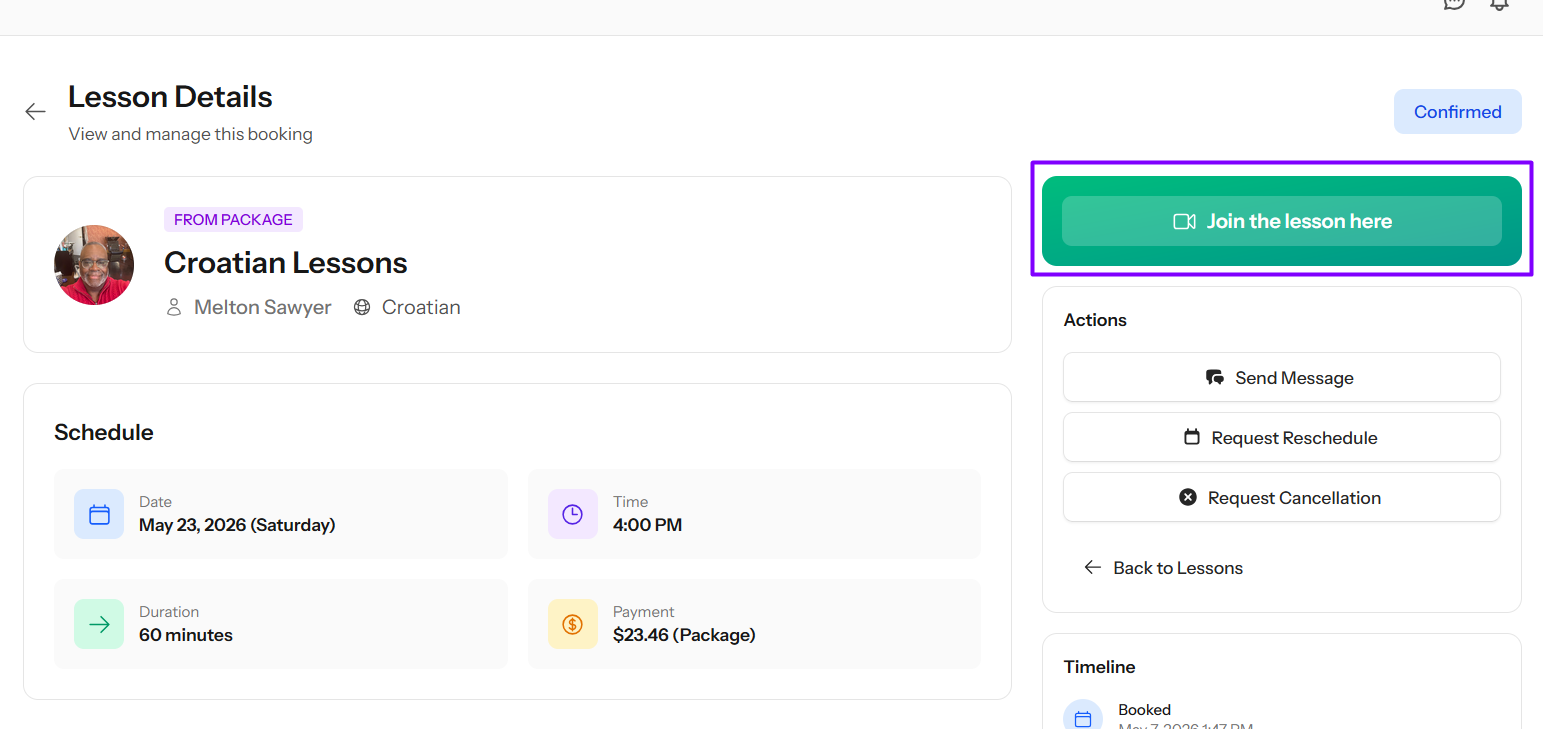
The meeting link is always available inside the “Lesson Details”, so you and your student can connect quickly and without confusion.
This is the Google Meet button in the “Lesson Details”.
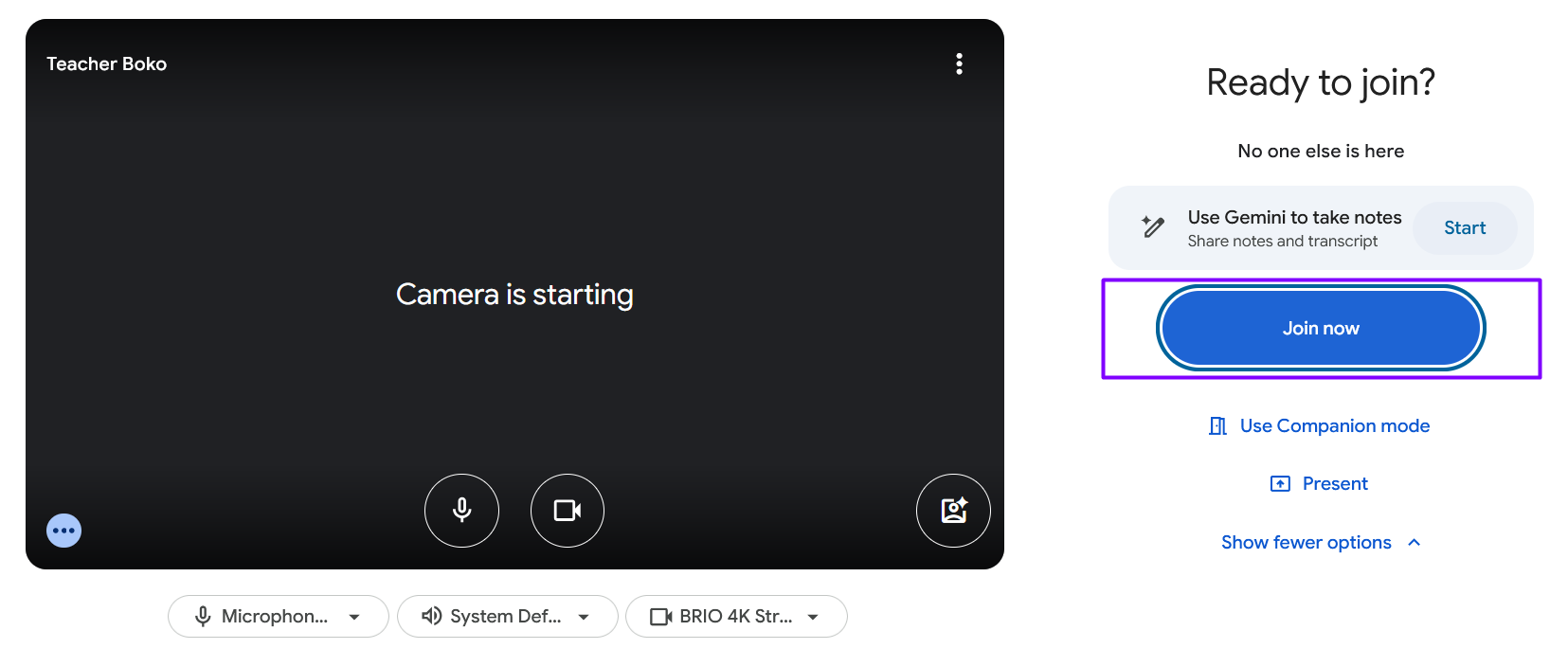
Anyone will be able to join simply by clicking the “Join Now” button – always in a single click, with no sign-in required.
Google Docs
Google Docs is the main tool used for writing, corrections, and sharing your lesson materials during class. It allows both you and your student to work on the same document in real time.
Everything is saved automatically, so nothing gets lost, and you can easily track progress over time. It’s simple to use, practical for live lessons, and keeps all lesson notes in one organized place.
This is a perfect tool if you have text that you want to work on with your students. You can just paste it into a Google Doc.
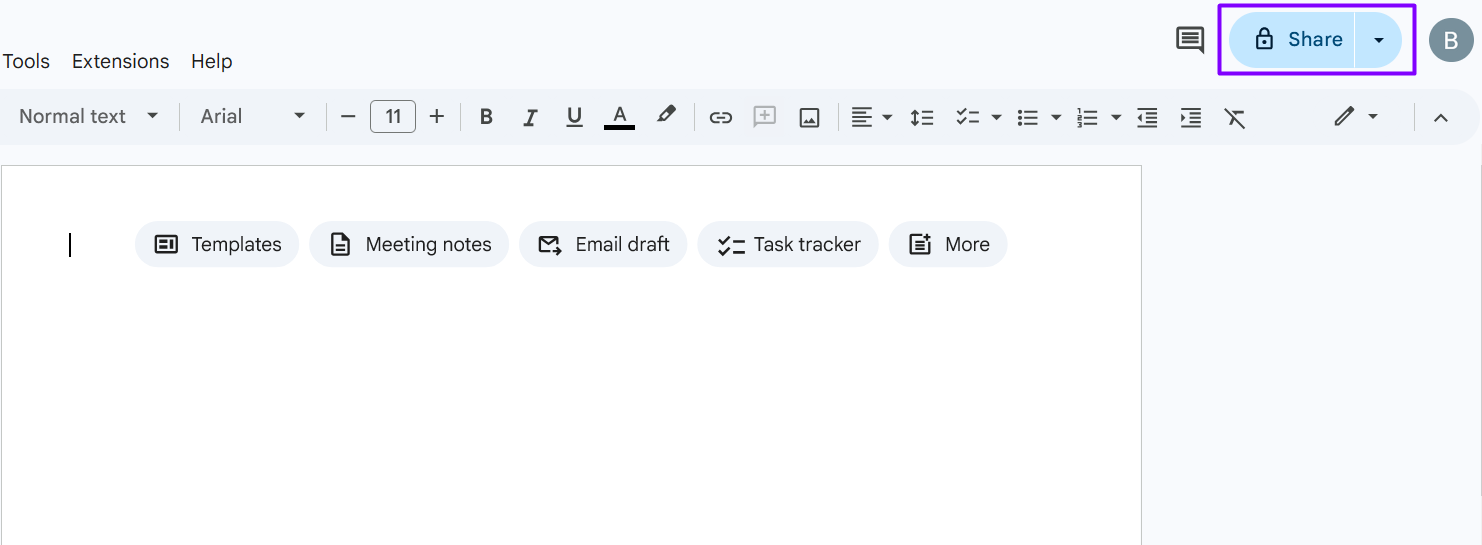
Once you start a new document in Google Docs, click on the “Share” button in the top right.
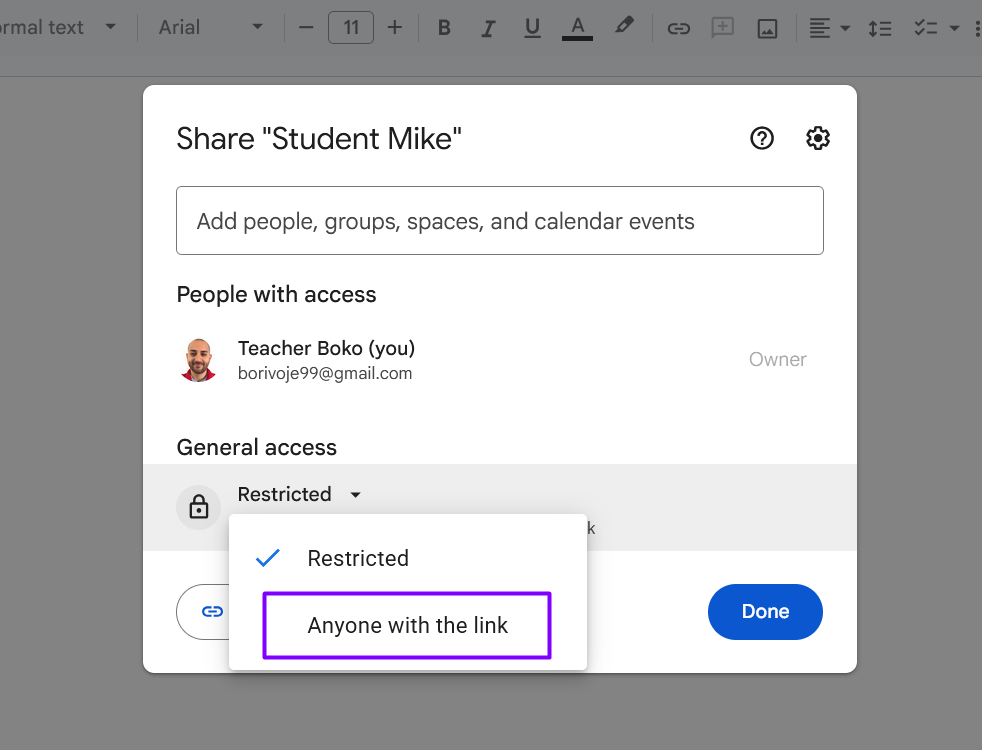
Under “General access”, select “Anyone with the link”.
Click on “Copy link” and click “Done”.
Share the link with your student. Go to “My Students” and select the student. Click on “Add.”
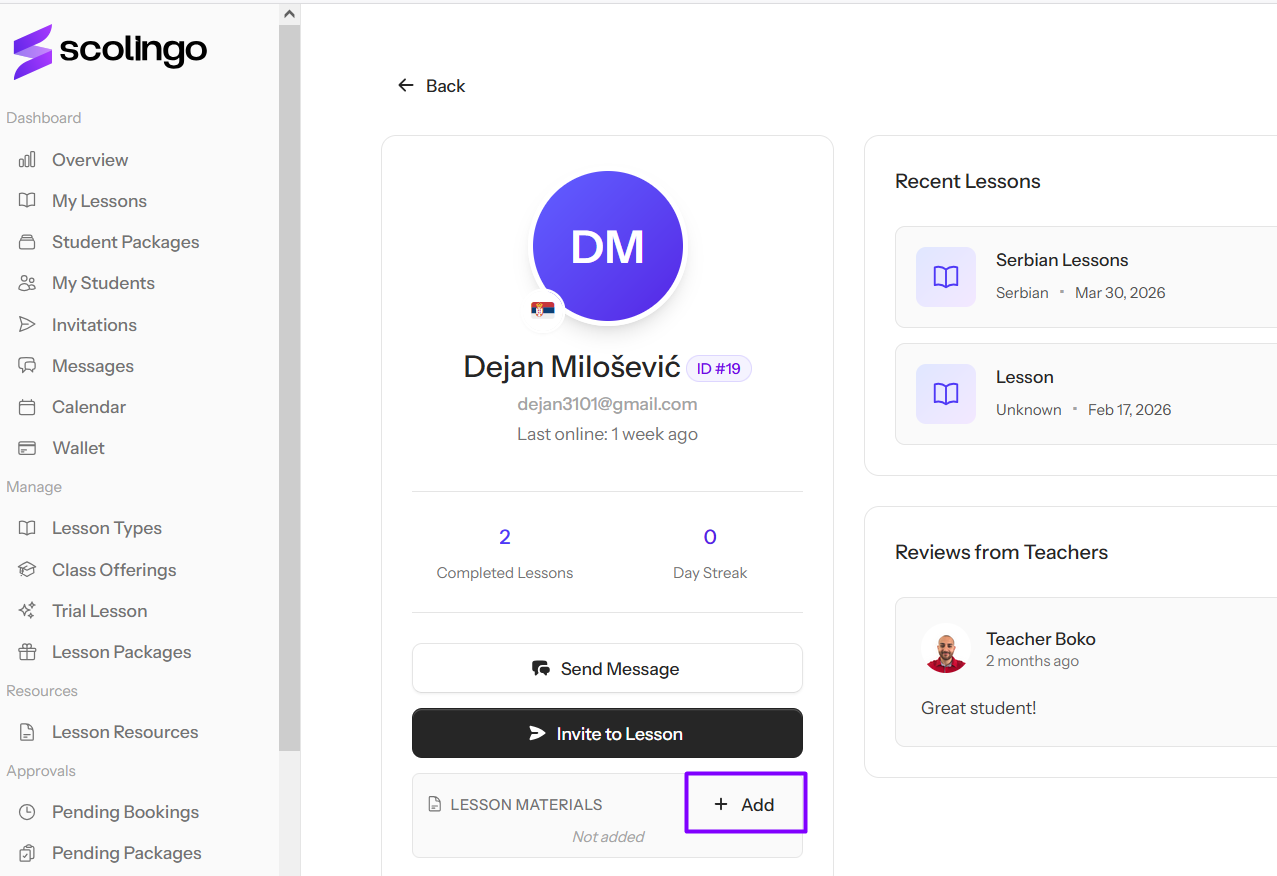
Another way is to click on the lesson from the calendar and go to “View Details.” You’ll find the option here:
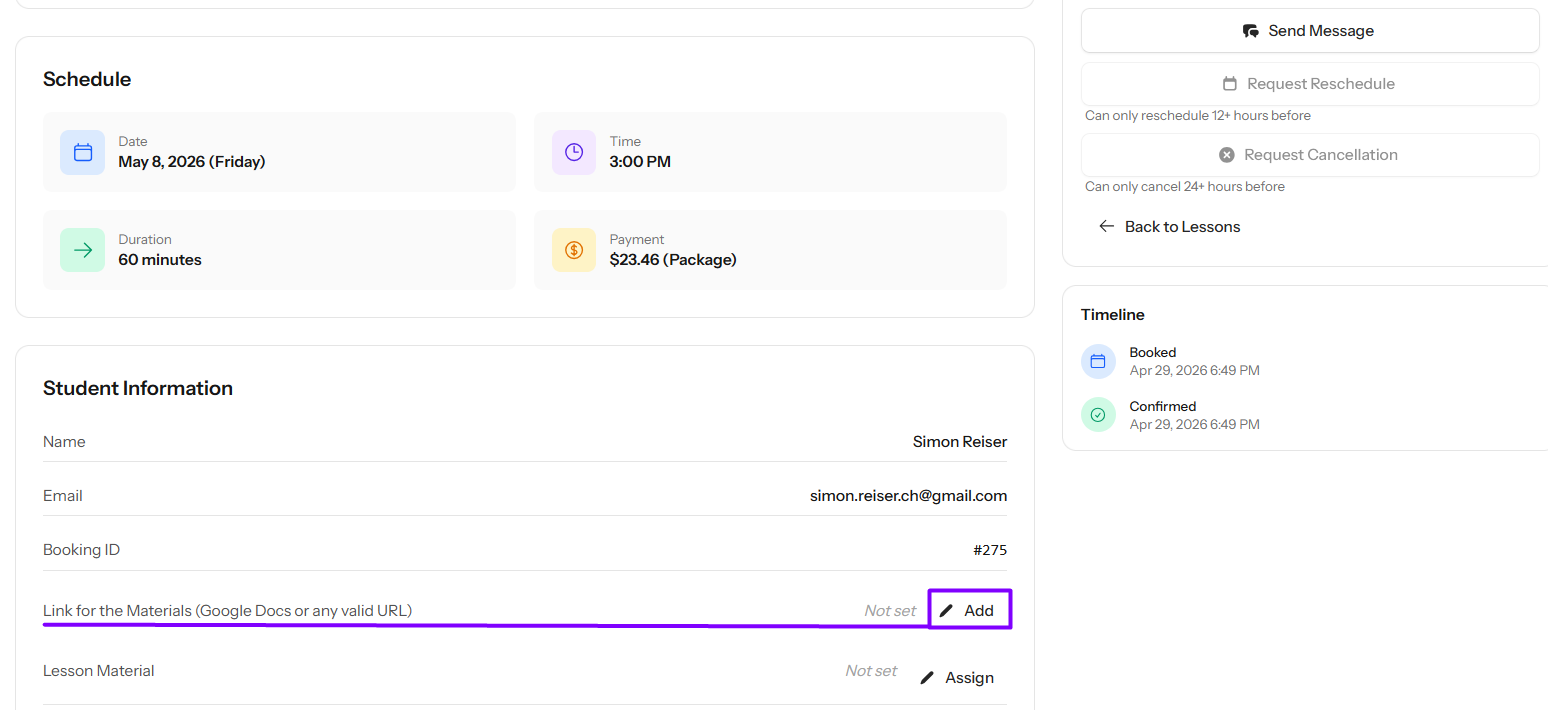
Or you can just paste the link in the Scolingo chat with your student.
PDFs Opened in Microsoft Edge
We encourage you to use our lesson materials if you don’t have your own. They are free!
Scolingo materials are provided in PDF format and cannot be copied into Google Docs for editing.
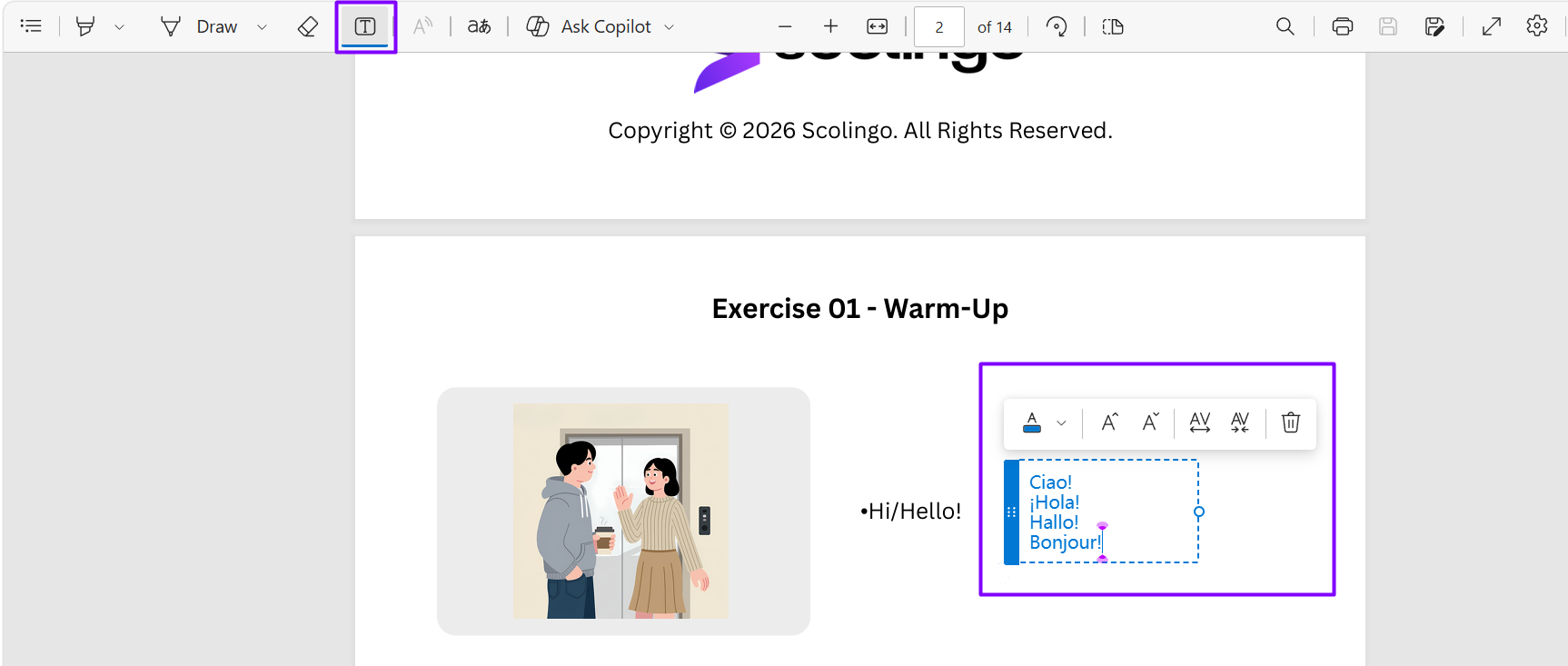
The recommended way to use them is to open the PDF in Microsoft Edge, which includes built-in editing tools. You can type translations or notes directly onto the PDF during the lesson.
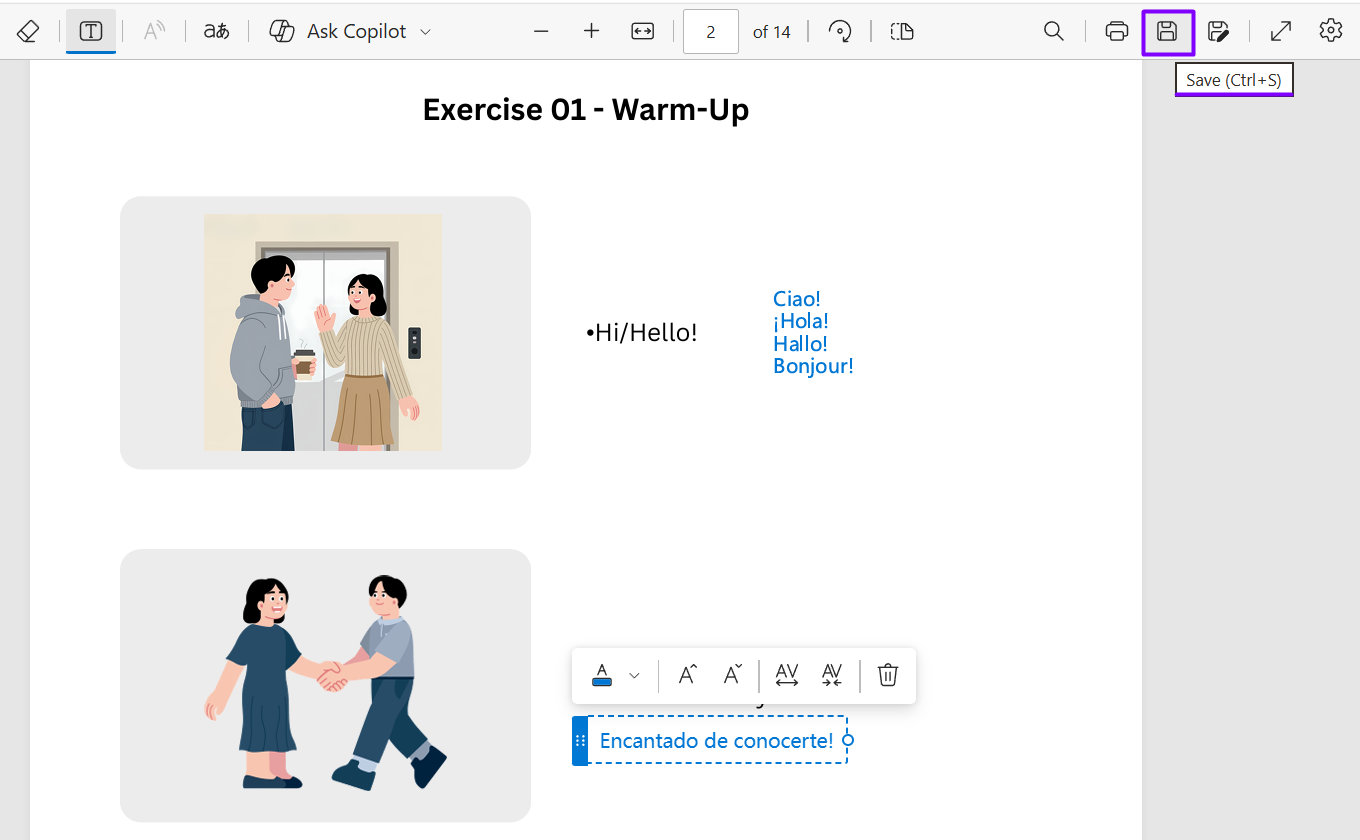
After the lesson, simply save the edited file and send it to your student.
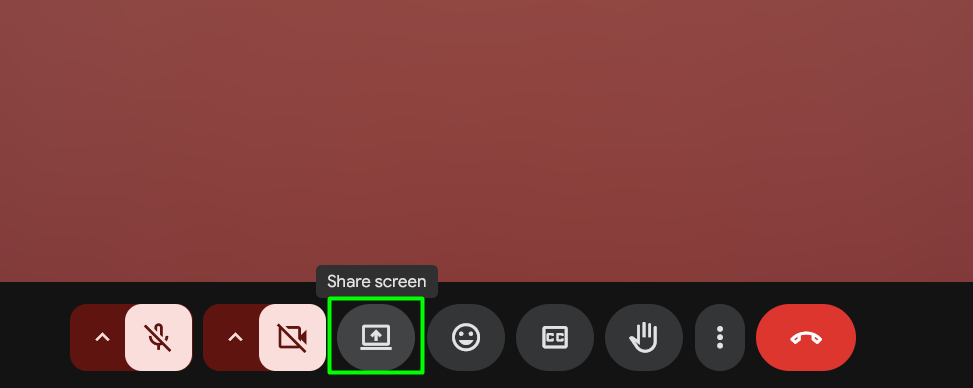
Just make sure to share your screen at the beginning of the lesson so the student can see your edits in real time.
You can find Scolingo materials in your Teacher Dashboard. Click on “Lesson Resources.”
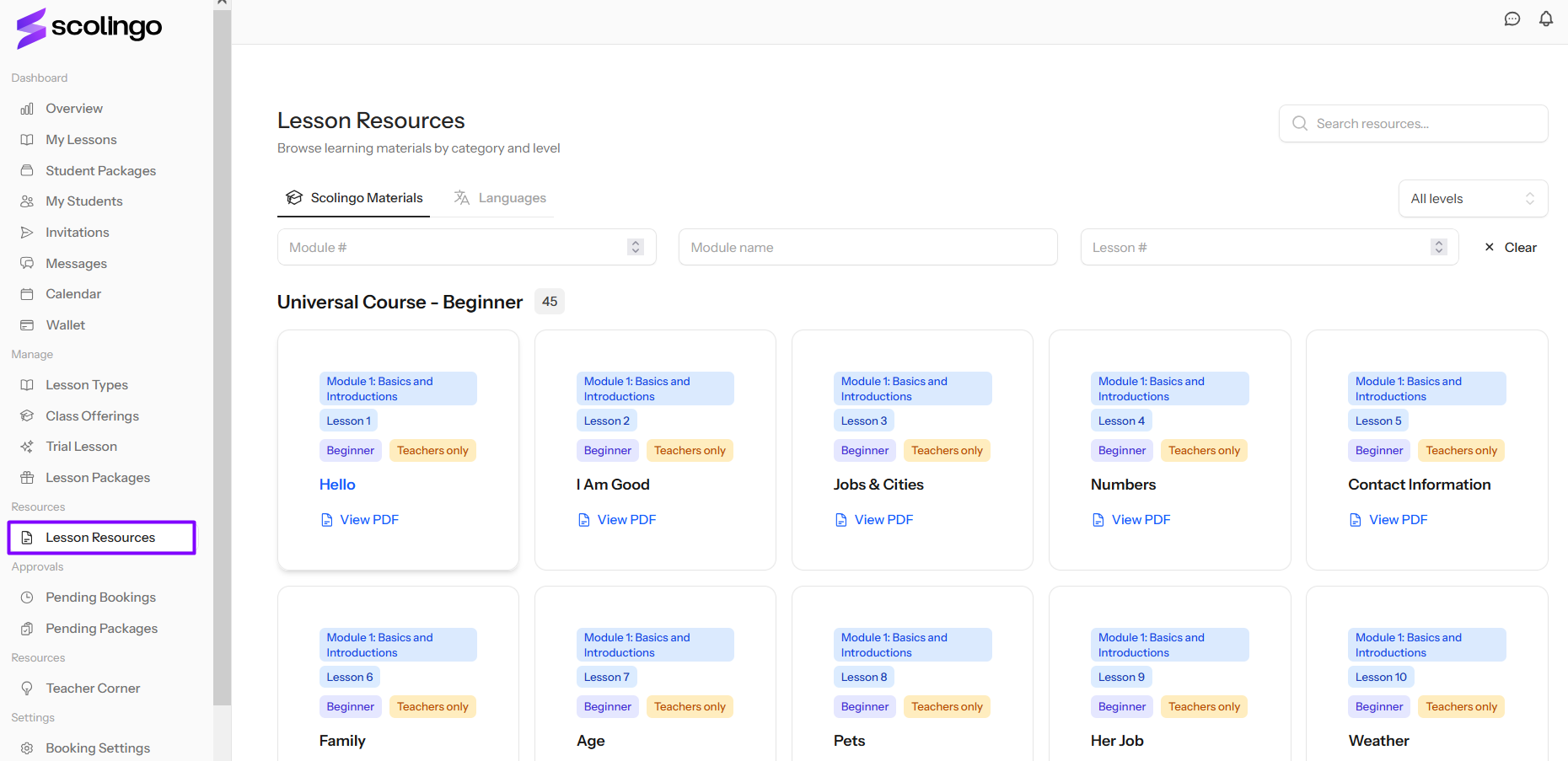
Download the lesson you want.
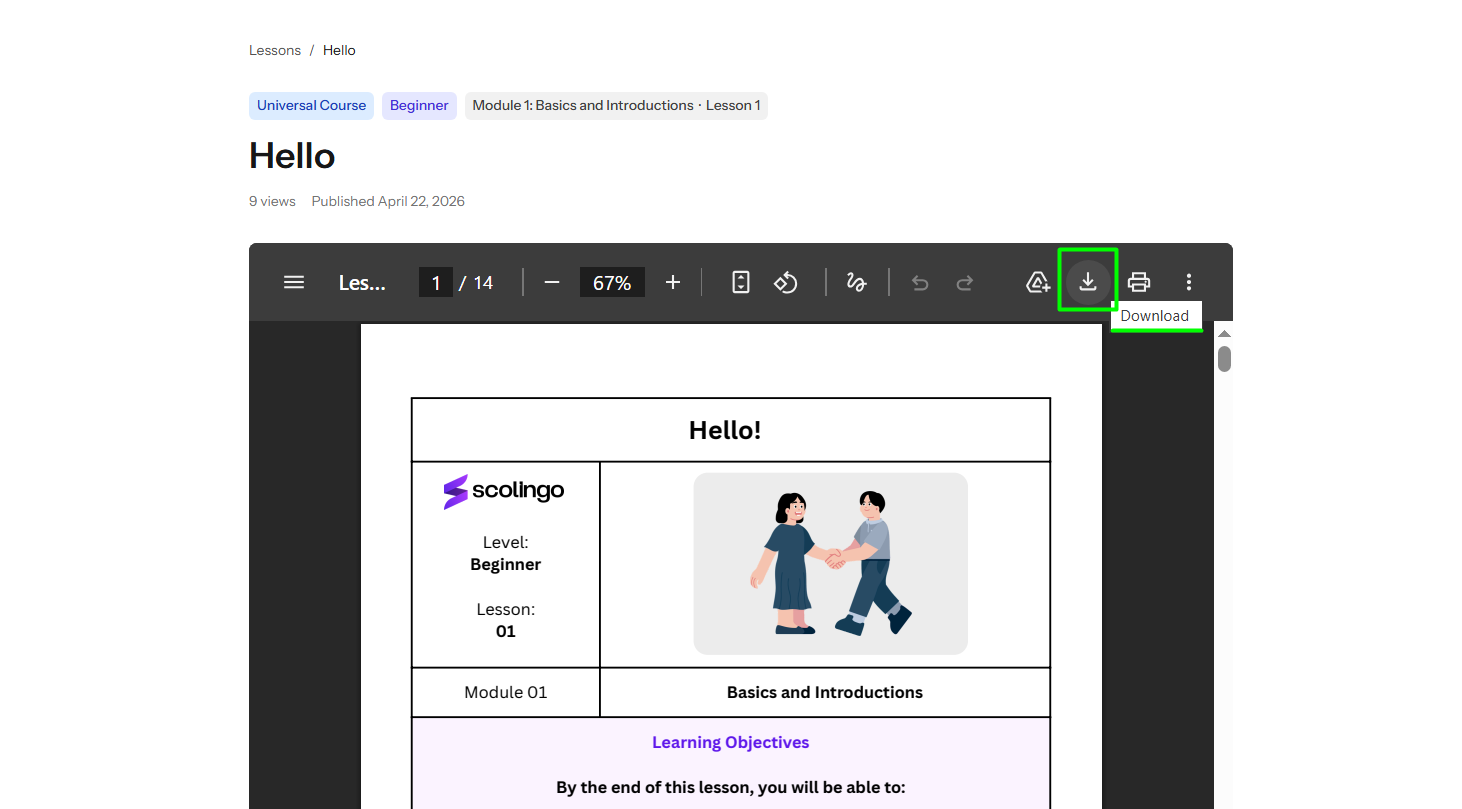
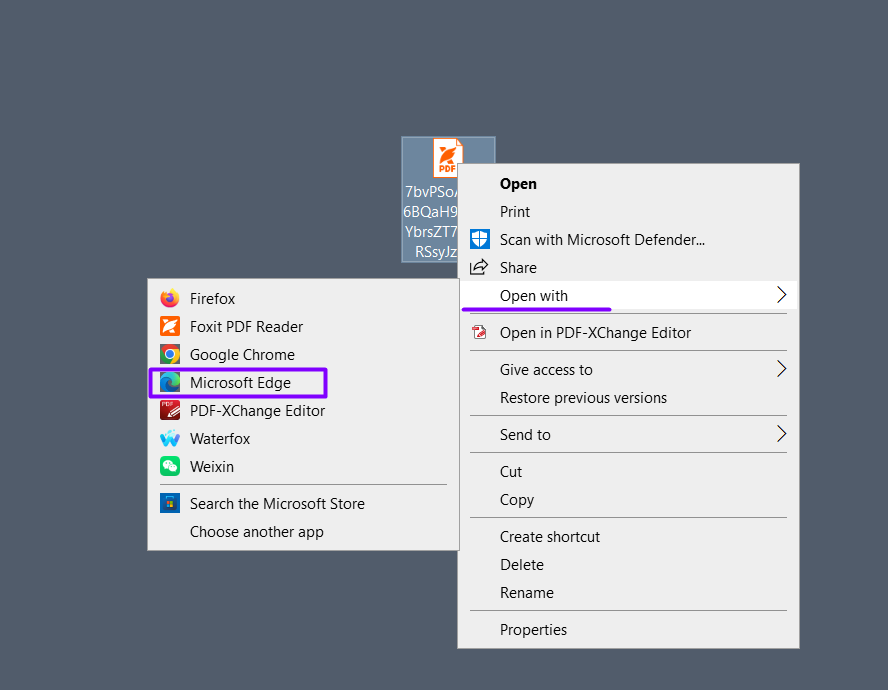
Right click on the PDF and select “Open with” - “Microsoft Edge”.
All these options will become available. You’ll be able to type directly onto the PDF.
Now go back to Google Meet and share the screen (Microsoft Edge).
Once the lesson is finished, click on “Save”.
All you need to do now is send the saved PDF to your student.